
Create your first ticket panel
Build a panel with its categories and questions, then post it in a channel members can see.
Do this on my dashboardA panel is the message in your server that members use to open a ticket: a card with a dropdown of categories (Support, Bug report, Partnership…). Each category decides where the ticket goes, who is pinged, and what the member is asked first. At the end of this guide, yours is posted in a channel.
Before you start
The ticket system must be on with a default creation category set — see Ticket setup. The one-click setup does both.
Start a panel
In the sidebar, under Tickets, open Ticket Panels and press Use a template. Pick the one closest to what you need — General support, Bug reports, Player reports, Partnerships or Billing & orders. A template fills in the card text, the categories and their questions in your server's ticket language; Add Panel starts from a blank one instead.
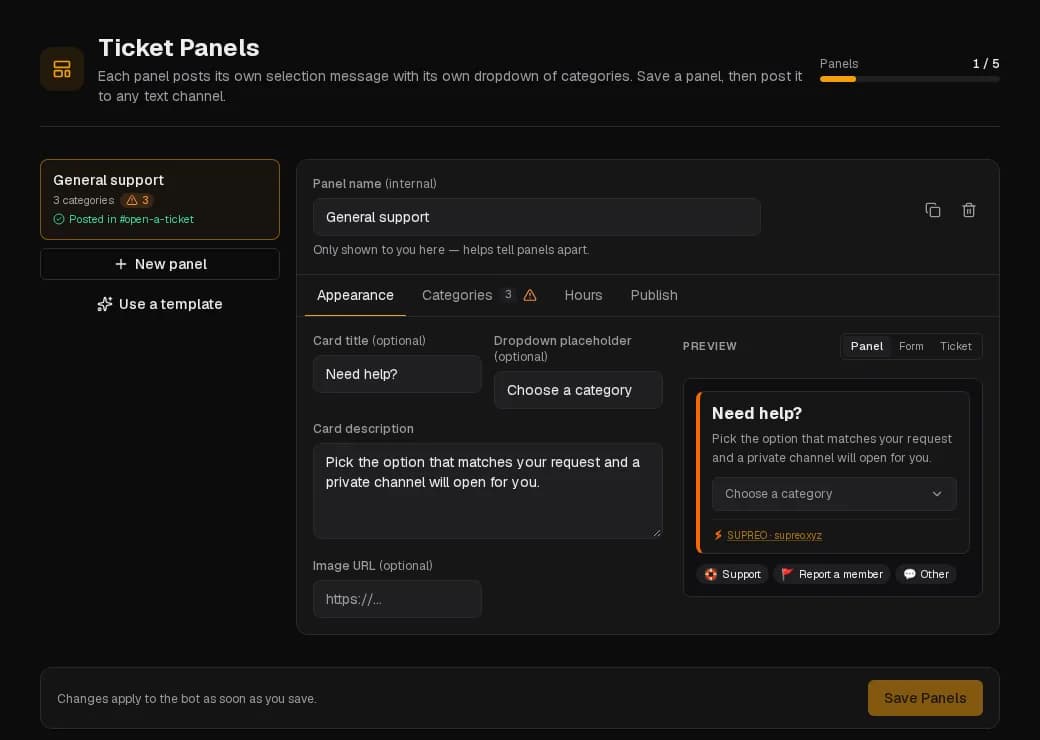
Give it a panel name. It is only shown to you, to tell panels apart.
Write the card
On the Appearance tab, set the card title and description — this is what members read above the dropdown. Markdown works. You can add a thumbnail (the bot's avatar, the server icon or your own image), a large image and, with Premium, a card colour.
The dropdown placeholder is the text shown on the closed dropdown, such as Choose a category.
Set up the categories
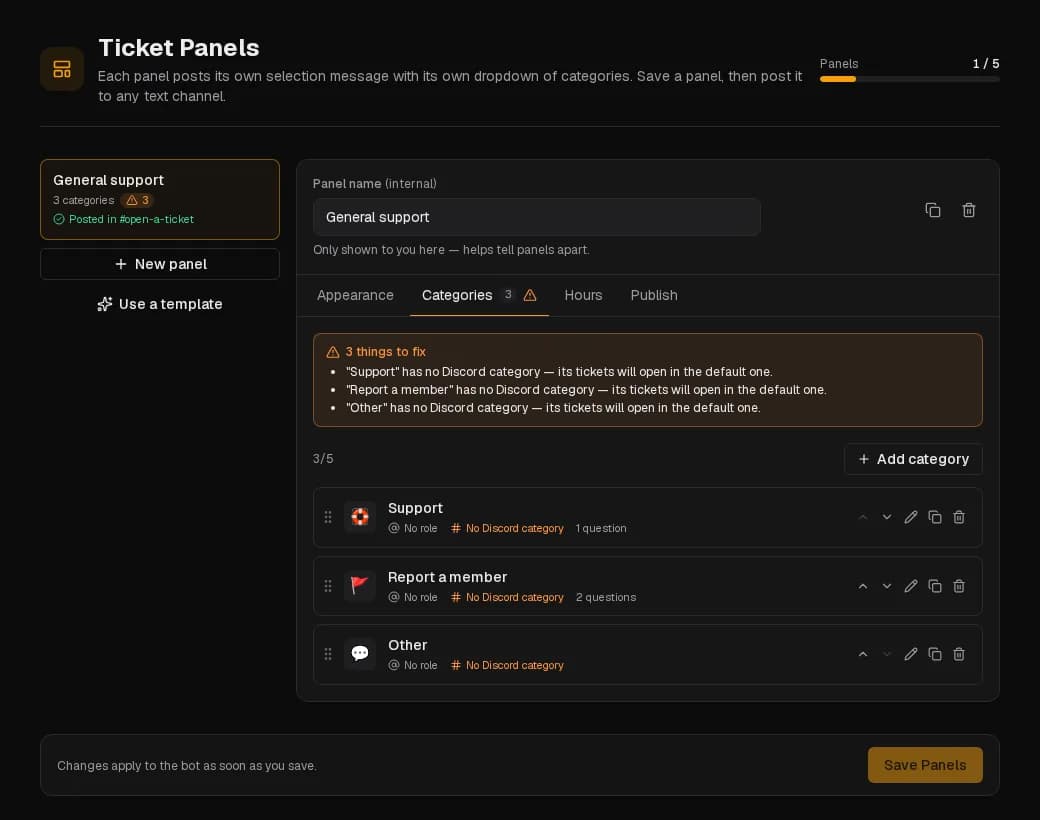
On the Categories tab, each category has a label, an optional emoji and a description shown in the dropdown. Open one to set the two things a template cannot guess:
- Role to ping — mentioned in the opening message of every ticket from this category.
- Discord category channel — the Discord category new ticket channels are created in. Left empty, tickets go to the default creation category.
Categories can be reordered by dragging. The free plan allows 5 per panel, Premium 25 (Discord's own limit for a dropdown).
Ask questions before opening (optional)
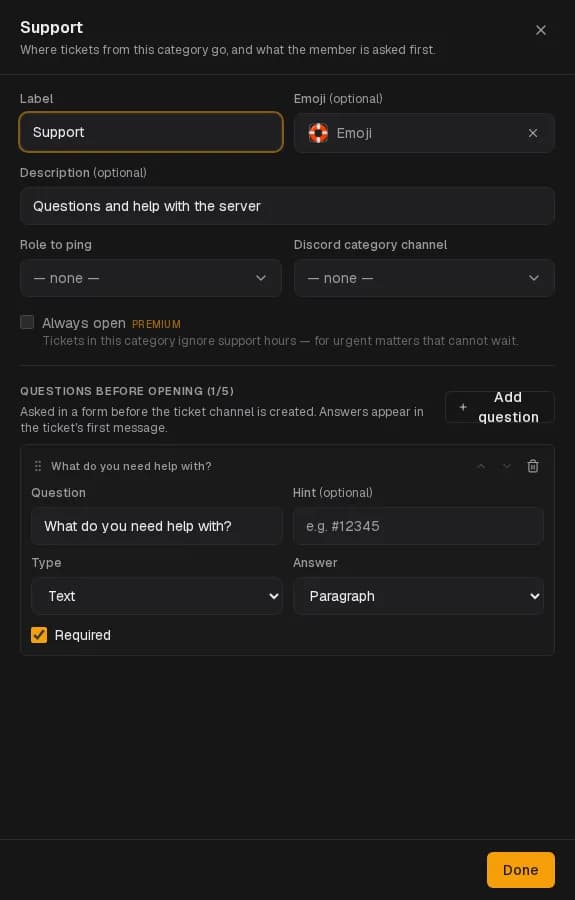
Still in the category, Questions before opening is the form the member fills in before the ticket exists. With no questions, they are asked for a subject only. Up to five questions, each text (single line or paragraph), a dropdown, checkboxes or an image upload, required or not. The answers appear in the ticket's opening message, so staff have the context before they say hello.
Keep it short: every required question is a reason to give up before pressing Submit.
Save
Press Save Panels at the bottom. A panel must be saved before it can be posted. If something is missing, the panel header lists what to fix.
Post it
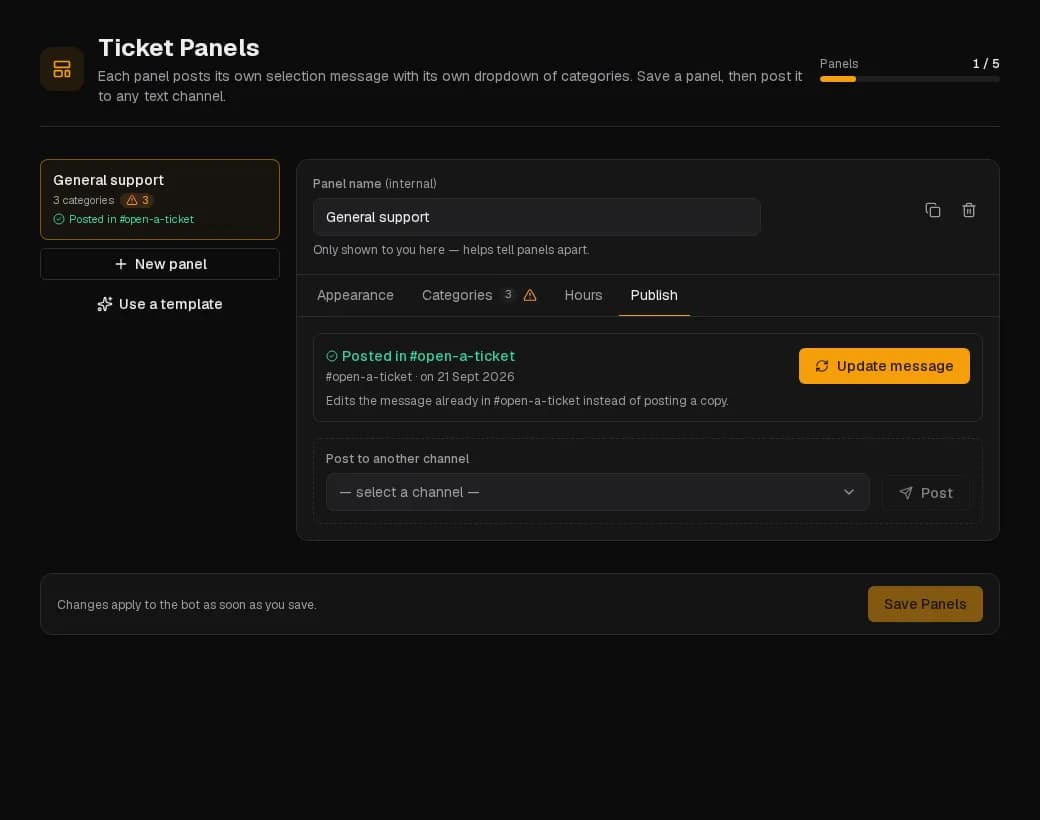
On the Publish tab, choose the channel members should see the panel in — #support, #help, the channel the one-click setup created — and press Post. Tickets are not created in that channel; only the panel message lives there.
Later edits do not need a repost: Update message edits the posted message in place. The panel header shows Posted in #channel or Changed since posted so you know where you stand.
Good to know
- One panel with three or four categories covers most servers and is easier for members than choosing between panels. Add a second panel when a queue really needs different staff, a different channel or different hours.
- A Discord category holds 50 channels. Busy servers should close tickets promptly, split categories, or turn on auto-close.
- A category marked Always open ignores support hours — for the urgent stuff.