
DM tickets
Let members open a ticket by messaging the bot. The conversation is relayed into a private staff channel — in your server or a separate support server.
Do this on my dashboardWith DM tickets — what other bots call modmail — a member writes to the bot in their direct messages, picks a category, and the ticket is created as a channel your staff see. Every message they send afterwards is relayed into that channel; every staff reply goes back to their DMs. The member never sees the channel. It suits reports, appeals and anything a member would rather not type in a shared channel — and it lets you take support off the main server entirely.
Premium
Set it up
Run a Whitelabel bot
Follow Whitelabel bot and make sure the bot is Online on the Bot Settings page. It must have the Message Content intent, or it cannot read DMs.
Turn on DM tickets
In Ticket setup → DM tickets, enable DM-based ticket system. Allow multiple tickets is switched off automatically: a DM has to be matched to one open ticket.
Choose where the channels go
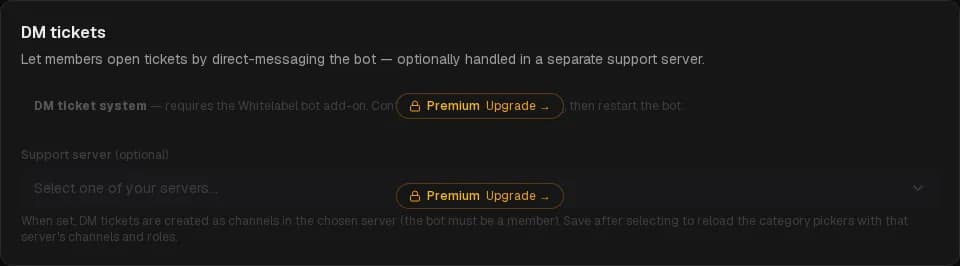
Support server — leave it on This server to create the ticket channels here (in the panel category's Discord category, or the default one). Or pick another server you manage and the bot is in: the channels are created there, and your main server never shows a ticket.
After choosing a support server, save: the role pickers reload with that server's roles.
Pick who sees DM tickets
DM ticket staff roles — the roles (in the support server, if you set one) that get access to the DM ticket channels. Set here, on the main server; the support server needs no configuration of its own and shows Managed from the main server on its dashboard.
Choose the panel
On Ticket Panels, DM ticket panel selects whose categories are offered to members who DM the bot. The first saved panel is used until you choose.
What the member sees
- They send the bot a message. The text becomes the ticket's subject.
- The bot answers with a dropdown of the panel's categories.
- If the category they pick has questions before opening, the same form opens in the DM. The ticket's first message shows their first DM, then the answers.
- Once they pick (and answer), the ticket exists and they get the ticket opened confirmation.
- Their later messages — text and files — land in the channel as cards. Staff replies arrive in their DMs, signed the way DM appearance says.
- On close they get the close DM and, if on, the rating prompt.
A member can start a new DM ticket at most every three minutes. While one is open, new messages go to it. /mytickets in the server reminds them to continue in their DMs.
What the team sees
The channel opens with the usual card and buttons plus a Reply button, which opens a text box and sends the reply to the member's DM. Other ways to answer:
/ticket reply message [fichier], with an optional file.- The dashboard conversation — replies are relayed to the DM as well.
- A canned response, from the Tags dropdown inline on the card (the channel is staff-only, so it can stay visible) or
/ticket tags send.
Plain messages typed in the channel are not relayed — they are notes between staff, recorded in the transcript. Only the Reply button, the command and the dashboard reach the member.
Support server
A support server is a second Discord server whose only job is to hold the ticket channels. Its dashboard shows the open tickets and the history but no ticket settings — those are the main server's. It inherits the main server's Premium.
It did not work?
Support hours
Tell members when your team is around. Outside those hours, tickets open with a warning or are refused, and members can ask to be told when you reopen.
DM appearance
How the direct messages a member gets look — the staff reply, the ticket-opened confirmation and the close notice — as a card or plain text, with your colour and signature.