
Ticket panels
Everything on a panel — appearance, categories, the pre-ticket form, per-panel hours, posting and updating.
Do this on my dashboardA panel is one message with one dropdown. A server can have several — one per audience, channel or queue. The walkthrough for a first panel is in Create your first ticket panel; this page is the reference for every option.
The panel list
Each panel shows its state: Not posted, Posted in #channel, or Changed since posted when the dashboard copy differs from the message in Discord. From the header you can duplicate a panel, delete it (you are asked whether to delete its Discord message too) and drag panels to reorder them.
Free servers can have 5 panels; Premium has no limit.
Appearance
| Field | Notes |
|---|---|
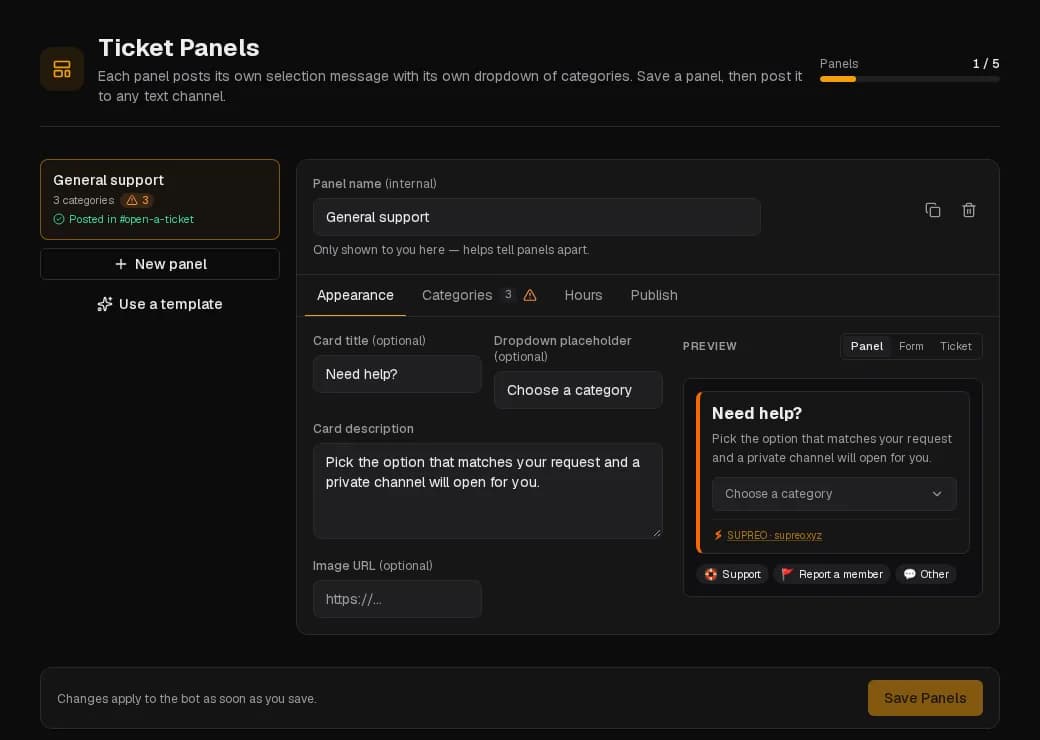
| Card title | Short. Need help? |
| Card description | Markdown, up to 3 000 characters. Explain what each category is for if the dropdown descriptions are not enough. |
| Dropdown placeholder | Text on the closed dropdown. |
| Thumbnail | None, the bot's avatar, the server icon, or a custom image URL. Shown top-right. |
| Image URL | A large banner under the text. A direct https link to an image file. |
| Card colour | The accent strip. Defaults to the server's primary colour. (Premium) |
The Preview on the right mimics the card as Discord renders it, and the Form and Ticket tabs show what the member and staff will see next.
Categories
The dropdown entries. Each category has:
- Label, emoji and description — what the member sees in the dropdown. Discord allows 100 characters for the label and 100 for the description (the short grey line under it); longer explanations go in the card description.
- Role to ping — mentioned in the ticket's opening message. Pinging does not grant access to the channel; access comes from the Roles tiers.
- Discord category channel — where this category's ticket channels are created. Empty means the default creation category.
- Who can open tickets here — empty means everyone. Pick roles to keep the category to members holding one of them, e.g. Premium support for
@VIP. Details below. - Always open — this category ignores support hours. For emergencies.
- Questions before opening — the form, below.
Limits: 5 categories per panel on the free plan, 25 with Premium. Drag to reorder; Duplicate category copies one with its questions.
Keep a category to some roles
Who can open tickets here keeps a category to members holding at least one of the chosen roles (up to 10). Everyone else can still open the panel's other categories.
- On a posted panel everyone sees the same menu, so the option shows 🔒 and the role names. A member without the role who picks it is told which roles it needs, privately.
- In the DM menu of DM tickets, members only see the categories they can open.
- Staff and members with Manage Server can always open it, so you can test it yourself.
- The check happens when the ticket is opened. A member who loses the role keeps the ticket they already have.
- After changing the roles, update the posted panel so the 🔒 note matches.
A whole panel can be kept to roles the same way: in the panel's Access tab, under Who can open tickets from this panel. Members without one of the roles are refused whatever category they pick, and the posted panel adds a "🔒 Reserved for …" line. A category inside a restricted panel needs both its own roles and the panel's.
Your own refusal (Premium): once roles are picked, Message for members without the role replaces the default sentence. Use it to say where the role comes from, e.g. "Get VIP in #shop".
The free plan can keep one panel or category to roles; Premium, as many as you like.
Questions before opening
Without questions, the member is asked for a subject only. With them, a form of up to five questions appears — Discord's limit for one form. DM tickets ask the same questions in the DM. Each question has a label, an optional hint, and a type:
| Type | The member gives… | Options |
|---|---|---|
| Text | A single line or a paragraph. | Required or not |
| Dropdown | One or several picks from a list. | One option per line, at least 2; allow several picks |
| Checkboxes | Any of the options. | One option per line |
| Image upload | One file, or several (up to the number you allow). Images show in the opening card, other files are attached. | Required or not; allow several files |
Answers are written into the ticket's opening message, so the team reads them before saying hello. A dropdown with fewer than two options is skipped by the bot; the panel header warns you.
Hours
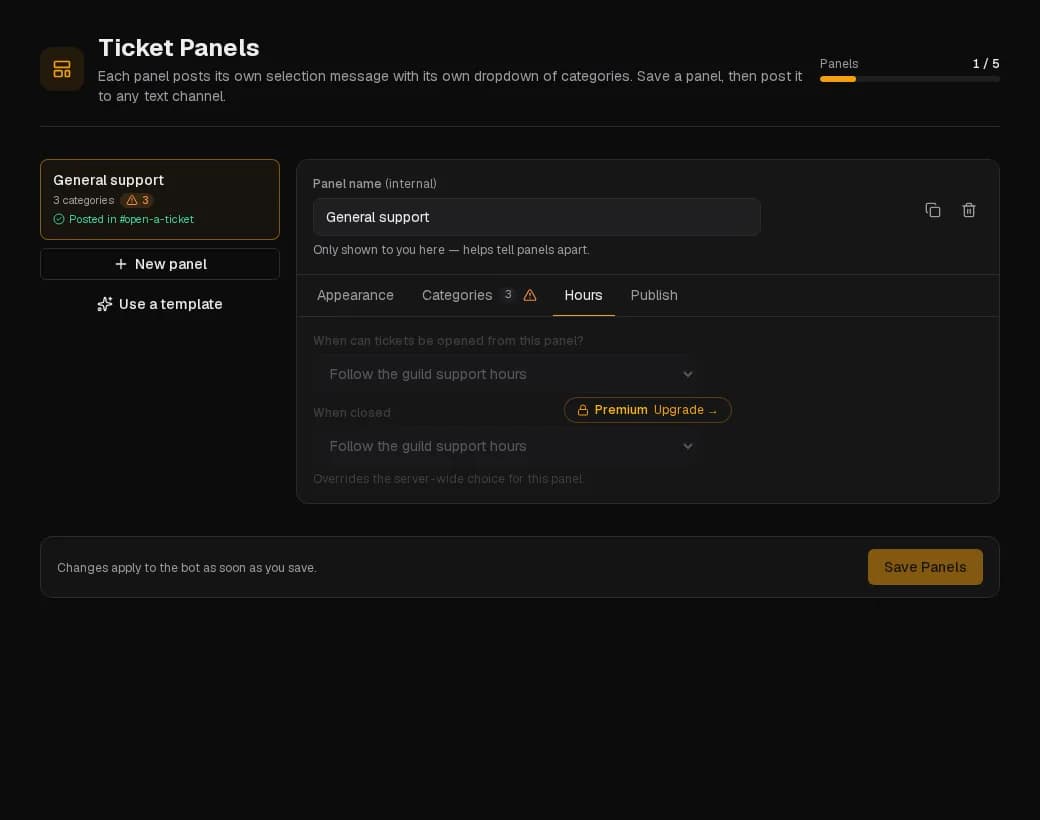
When can tickets be opened from this panel?
- Follow the guild support hours — the default; uses Support hours from Ticket setup.
- Custom hours for this panel — its own weekly hours and closed message, in the server's timezone. For a sales panel that keeps office hours while support runs all week.
- Always open — ignores support hours entirely.
When closed overrides the server-wide choice for this panel: open with a warning, or refuse the ticket (Premium).
Publish
Pick the channel and press Post. The bot posts the card with its dropdown; only the panel lives there, tickets are created elsewhere. Afterwards:
- Update message edits the posted message in place — members keep the same message, nothing to re-pin. If the original message is gone, the panel is posted again.
- Post to another channel posts a fresh copy; the panel then tracks the new message.
A panel must be saved (Save Panels) before it can be posted, and saved again after changes before Update message is offered.
The DM ticket panel
When DM tickets are on, DM ticket panel at the top of the page chooses which panel's categories are offered to members who message the bot. Only saved panels can be chosen.
Templates
Use a template builds a panel in your server's ticket language: General support, Bug reports, Player reports, Partnerships, Billing & orders. It fills in the card, the categories and their questions; you set the roles and Discord categories.