
Ticket setup
The server-wide ticket settings — where tickets go, who handles them, what the bot says, what gets logged, and when tickets close on their own.
Do this on my dashboardTicket Setup (sidebar → Tickets) holds everything that applies to every ticket on the server. Panels and categories are on their own page. Changes apply to the bot as soon as you save.
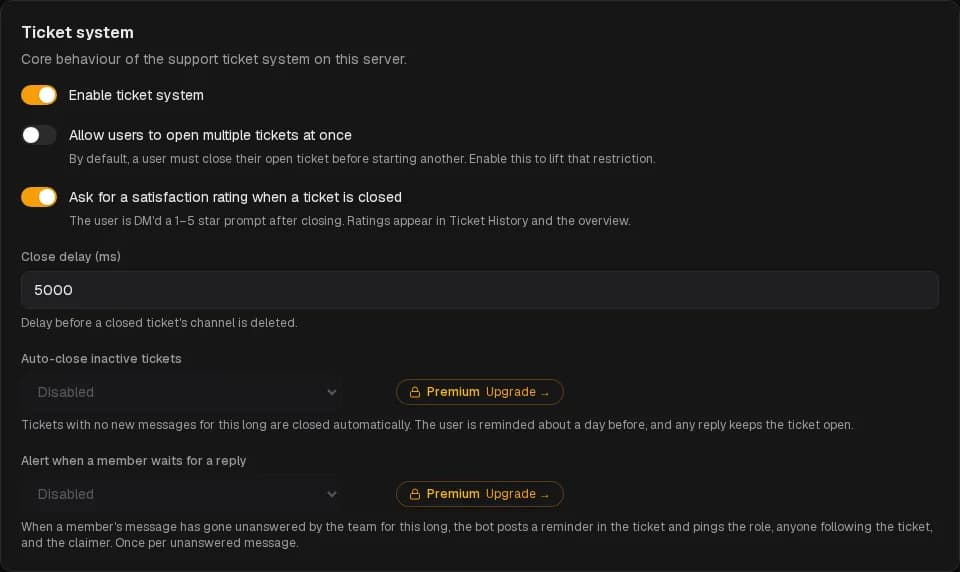
Ticket system
- Enable ticket system — the master switch. Off, panels stay posted but picking a category tells the member tickets are unavailable.
- Allow users to open multiple tickets at once — by default a member must close their ticket before opening another. It is locked off while DM tickets are on, because a DM has to be matched to one open ticket.
- Ask for a satisfaction rating when a ticket is closed — the member is DM'd a 1–5 star prompt. Ratings show in History, on the overview and in Analytics. Needs transcript archiving (below), since the rating is stored on the archived ticket.
- Ask for a reason when closing with the button — the Close button opens a short form with an optional reason, shown to the member in the close message. Off by default. See Close reason.
- Close delay — how long the channel stays after Close, in milliseconds (up to 30 000). Long enough for the close message to be read.
Auto-close
Auto-close inactive tickets closes tickets with no new message for 2, 3, 5, 7 or 15 days, a month or three months. The member is reminded by DM about a day before; any reply keeps the ticket open. Closed tickets are archived like any other, marked auto-closed in Analytics.
Alert when a member waits for a reply is the opposite reminder, for your team: after 1 to 48 hours without a staff answer to a member's message, the bot posts in the ticket and pings the chosen role, anyone who pressed Notify me, and the claimer. Once per unanswered message.
Close when the member leaves closes a ticket 1, 6, 12 or 24 hours, 2, 3 or 7 days after the member who opened it left the server, unless they come back first. It is free, and off (Never) by default. See When a member leaves.
Premium
Routing
Default creation category is the Discord category new ticket channels are created in when the panel category has none of its own. Create an empty Discord category first (the one-click setup names it Tickets). A Discord category holds 50 channels; when it is full, tickets fail to open — see Members get an error.
Channel names
Channel name picks how new ticket channels are named:
| Option | Example |
|---|---|
| Username (default) | #zerkay |
| Ticket number | #ticket-1221 |
| Number and username | #1221-zerkay |
Numbers follow the order tickets are opened in, one count for the whole server — tickets routed to a support server share the main server's count. Two tickets opened at the same moment never get the same number, and the bot never hands out the same number twice on its own.
- Next number — where the count stands. Numbering starts at 1; Continue after the tickets opened so far sets it to follow your existing tickets instead. Setting it lower can repeat numbers already used.
- Leading zeros —
ticket-0042rather thanticket-42, so channels sort in order in Discord's list.
The number is only in the channel name: History, transcripts and the member's messages keep the ticket ID they have today. A reopened ticket gets a new channel, so it takes the next number. Priority prefixes (🔴-ticket-1221) and manual renames work as before.
Staff & access
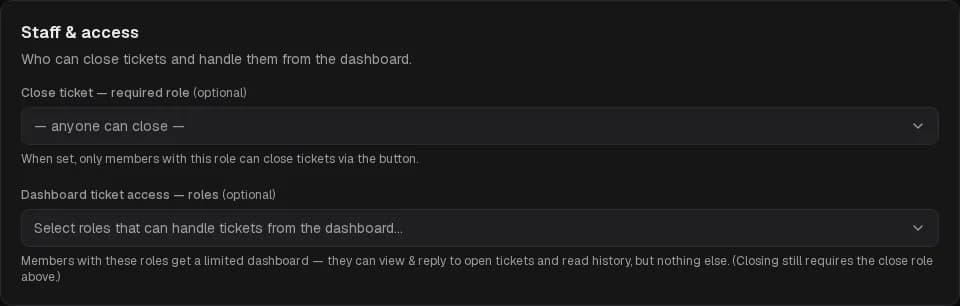
- Close ticket — required role: only this role can press Close or run
/ticket close. Empty, anyone in the ticket — including the member — can close it. - Dashboard ticket access — roles: members with these roles can open Open Tickets and reply from the dashboard, even without Manage Server. They still need Manage Server to change settings.
- Analytics access — roles: members with these roles can open Analytics and Team Analytics (Premium) for this server, read-only, without seeing tickets or settings. An agent or log viewer who also holds one gets both pages on top of their access. Pick this server's roles, even when tickets go to a support server.
Who sees ticket channels in Discord is decided on the Roles page — the Admin, Staff, Support and Moderator tiers.
Ticket members
Lets people besides the opener into a ticket — a teammate of theirs, a witness, the person a report is about. How it works day to day is in Handling tickets.
- Allow adding members to tickets: on by default. Off, the Members button disappears from new tickets and
/ticket addrefuses. - Who can add members: the support team only, or the ticket's opener as well. Anyone who was added can always leave by themselves.
- Members per ticket: not counting the opener, from 1 to 25 (10 by default).
- Tell added members by DM: they are mentioned in the ticket either way; this also sends them a private message with a link to it.
Adding members works with channel tickets. With DM tickets every message goes through the bot to the opener alone, so it is not available there yet.
DM tickets
Lets members open tickets by direct-messaging the bot, optionally handled in a separate support server. It has its own page: DM tickets. DM appearance, right below it, sets how the bot's DMs look: DM appearance.
Ticket messages
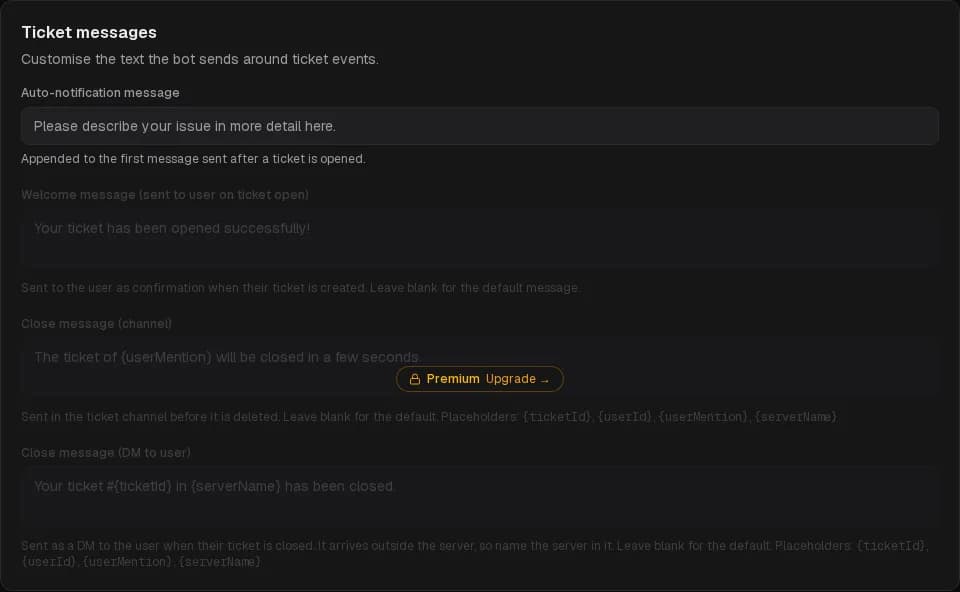
The text around ticket events. Leave a field blank for the default in the server's ticket language.
| Message | When | Placeholders |
|---|---|---|
| Auto-notification message | Added to the opening message of every ticket, above the role ping. "Please describe your issue in more detail here." | — |
| Welcome message | The confirmation the member gets when their ticket is created. | — |
| Close message (channel) | Posted in the ticket channel before it is deleted. | {userMention} {userId} {ticketId} {serverName} |
| Close message (DM) | Sent to the member by DM when their ticket closes. It arrives outside the server, so name the server in it. | {userMention} {userId} {ticketId} {serverName} |
Premium
Logging
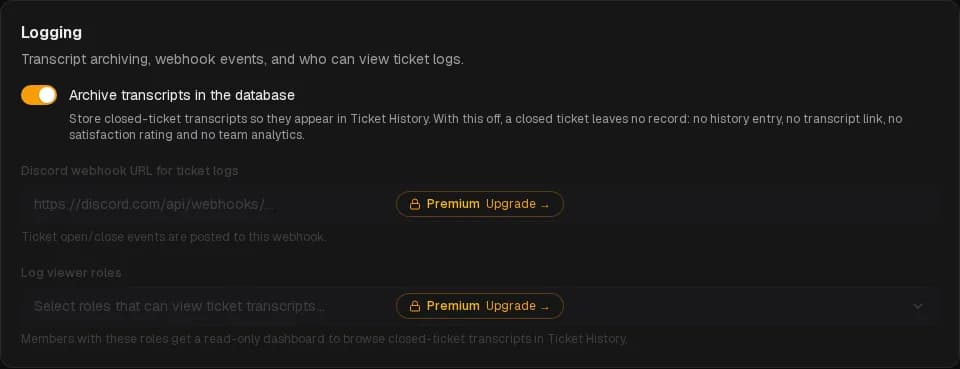
- Archive transcripts in the database — on by default. Off, a closed ticket leaves no record: no History entry, no transcript, no rating, no team analytics. Existing entries are kept.
- Discord webhook URL for ticket logs — open and close events are posted to this webhook as a card, with the opener, who closed it, how long it took, how many messages, the notes and a link to the transcript. Make the webhook in a private channel: Channel settings → Integrations → Webhooks. (Premium)
- Log viewer roles — members with these roles get a read-only dashboard to browse History without any other access. (Premium)
Support hours
The last section of the page. It is big enough to have its own guide: Support hours.