
Roles & access
Which Discord roles see ticket channels and use staff commands, who can open the dashboard, and who can only read.
Do this on my dashboardSUPREO has no permission system of its own to learn. Access is a handful of Discord roles you map on two pages, plus the Discord permissions your members already have.
Role tiers (Roles page)
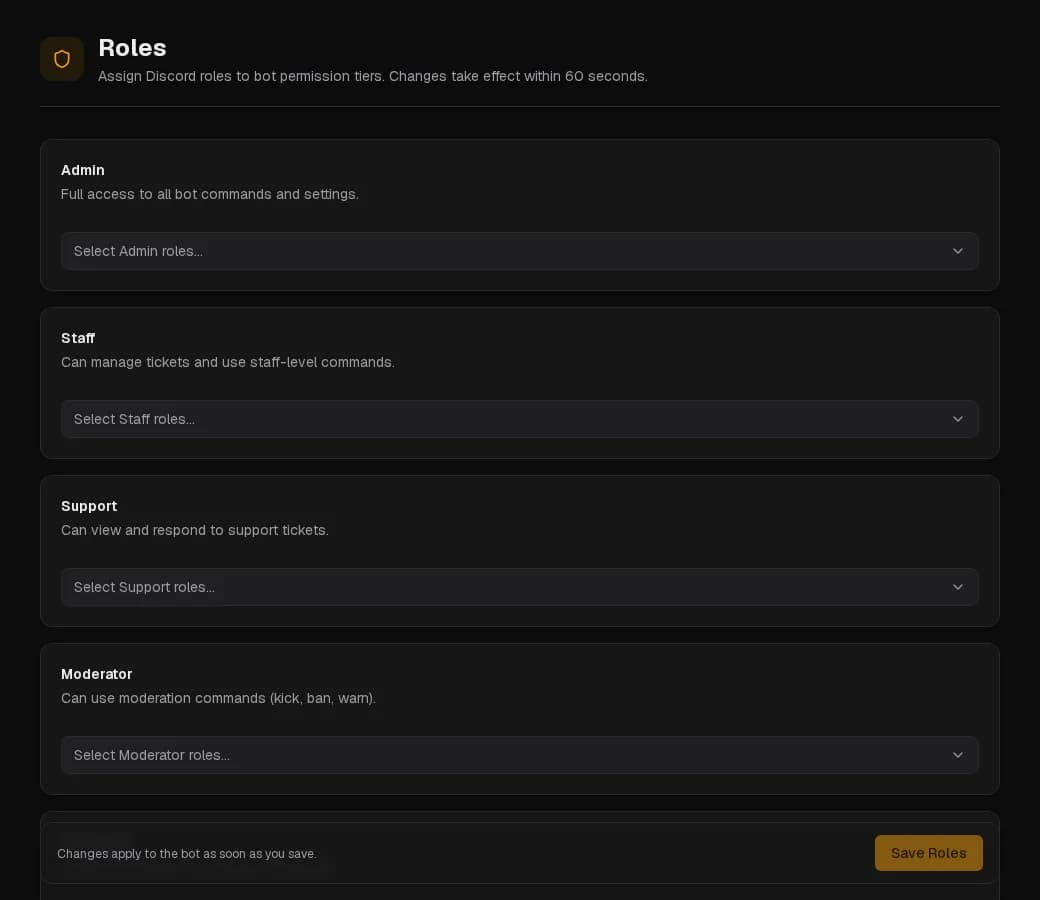
Roles (sidebar → Community) maps your Discord roles to four tiers. Changes take effect within a minute.
| Tier | Grants |
|---|---|
| Admin | Sees every ticket channel; staff for the bot; may use the moderation commands. |
| Staff | Sees every ticket channel; staff for the bot. The one-click setup puts your staff role here. |
| Support | Sees every ticket channel; staff for the bot. |
| Moderator | Sees every ticket channel; staff for the bot; may use the moderation commands. |
A panel or a category can keep its tickets to other roles instead: see Ticket access. The admin group always sees every ticket.
With a support server linked (Ticket setup), tickets open there, so Support lists that server's roles and is the group that sees them. The other tiers keep your main server's roles.
In practice the first four are the same thing — the team — kept separate so your role names map naturally. Being staff for the bot means: the Tags button, Claim, and /ticket (which also needs Discord's Manage Messages).
A role that is only pinged by a panel category does not see the ticket channel unless it is in one of these tiers.
Dashboard access (Ticket setup)
| Setting | Grants |
|---|---|
| Dashboard ticket access — roles | Open Tickets and the conversation view: reply, claim, notes, close. No settings. |
| Log viewer roles (Premium) | A read-only dashboard: Ticket History and transcripts only. |
| Analytics access — roles | Analytics and Team Analytics, read-only. No tickets, no settings. Stacks with the two above. |
| Close ticket — required role | Restricts who can close a ticket, in Discord and on the dashboard. |
Both live under Ticket setup → Staff & access and Logging.
Discord permissions
| Permission | Lets a member |
|---|---|
| Manage Server | Open the server on the dashboard and change every setting; take over a claimed ticket; run /setup, /support and /verify. |
| Manage Messages | Run /ticket — together with a staff tier or the dashboard-access roles. |
Who sees each command, and in which channels, is set on Command permissions, or in Discord itself: Server Settings → Integrations → SUPREO. Both stay in sync.
Where the bot's role goes
Drag the bot's own role above every role it has to give or remove — verified and unverified roles, auto roles, quarantine roles — in Server Settings → Roles. Discord refuses a bot any action on a role higher than its own, and this is behind most "the bot did nothing" reports.